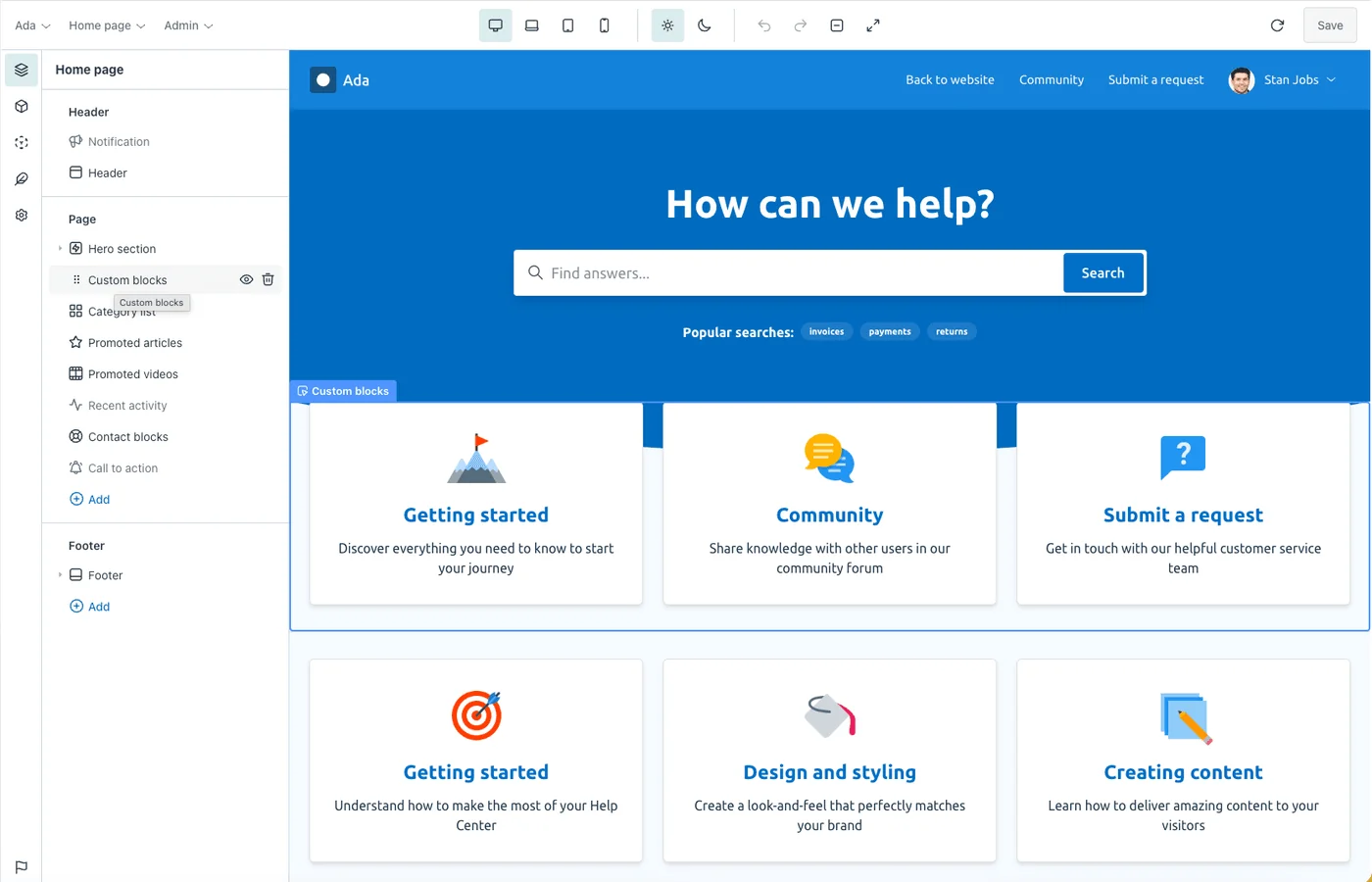
Everything you change in the visual builder is reflected instantly in the preview, rendered with real content from your help center. It’s a true what-you-see-is-what-you-get view of your theme.
Click to edit
The fastest way to change something is to click it. Hover over the preview to highlight individual elements, then click to select one. A small toolbar appears with Edit parent, Edit and Remove buttons—click Edit to open the matching editing panel and adjust its content and styles, or Edit parent to step up the hierarchy when an element sits inside another. Press Esc to deselect. Elements can’t be selected while the preview is maximized.
Switching pages
A help center is made up of many different page types, and the builder lets you preview and edit each one. Use the Page menu in the toolbar to move between them, including:
- Home
- Category and Section
- Article and Search results
- Requests and Request forms
- Community topics and posts
- User profile and Contributions
- Following, New request, New community post and Error pages
Changes you make to shared areas like the header and footer carry across every page automatically.
Previewing as different roles
Help centers often show different content to different people—a signed-out visitor sees something different from a signed-in end user, agent or admin. Use the Role menu to preview the page as each of these so you can confirm your design works for everyone.
Checking your design on every screen
Use the Breakpoint controls to preview your help center at desktop, laptop, tablet and mobile widths without leaving the editor. This is also where you make responsive-specific adjustments, covered in responsive design.
Focusing on the canvas
When you want to concentrate on the design itself, use the Zoom and Maximize controls to enlarge the canvas or slide the panels out of the way for a full-width preview.
Some content can only be generated on your live help center. AI-powered quick answers, for example, are fully supported by the theme but appear as a placeholder in the preview, and very large lists of articles or sections may be capped for performance. You can refresh the preview’s cached content at any time from the toolbar.